
Admin Forms & Subforms
The Admin Forms and Subforms page allows users to easily identify and manage forms based on their configuration in the form settings. Depending on how the form is defined, it will appear under either the Admin Forms tab or the Subforms tab.
Admin Forms
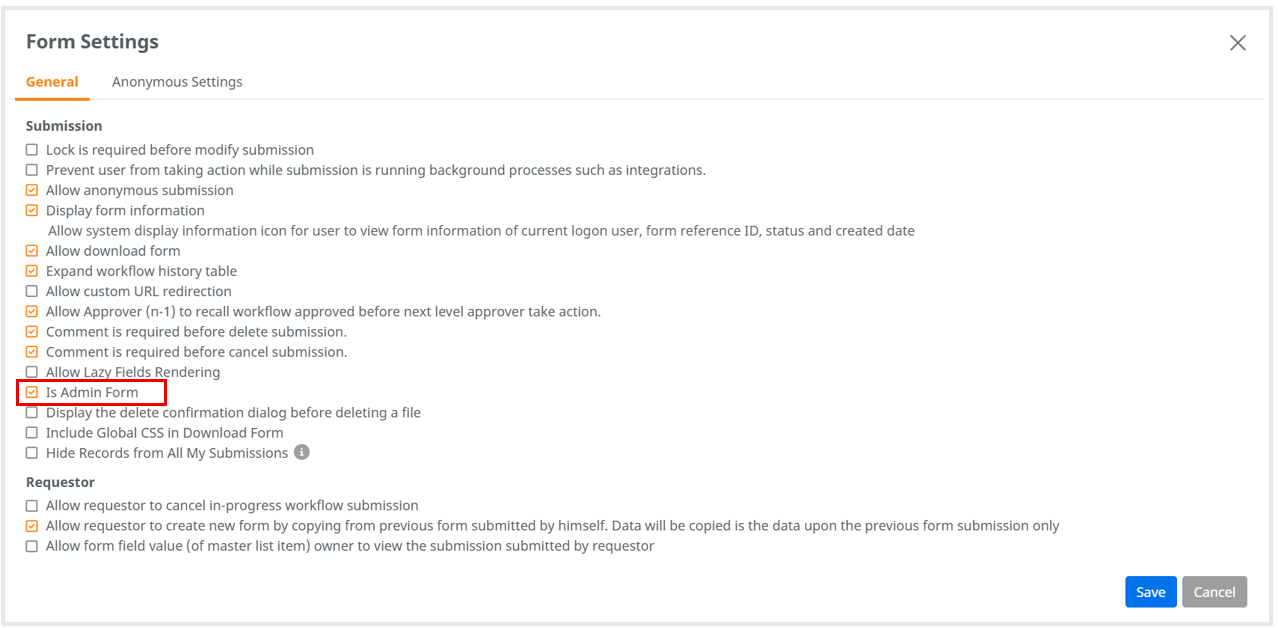
A form will be listed under the Admin Forms tab if it has been marked as an Admin Form.
• Navigation:
- Form > Form Settings > General Tab > Is Admin Form
• Configuration:
- In the Form Settings page, under the General tab, enable the checkbox Is Admin Form.
- Once selected, the form will be categorized as an Admin Form and displayed under the Admin Forms tab.
Subforms
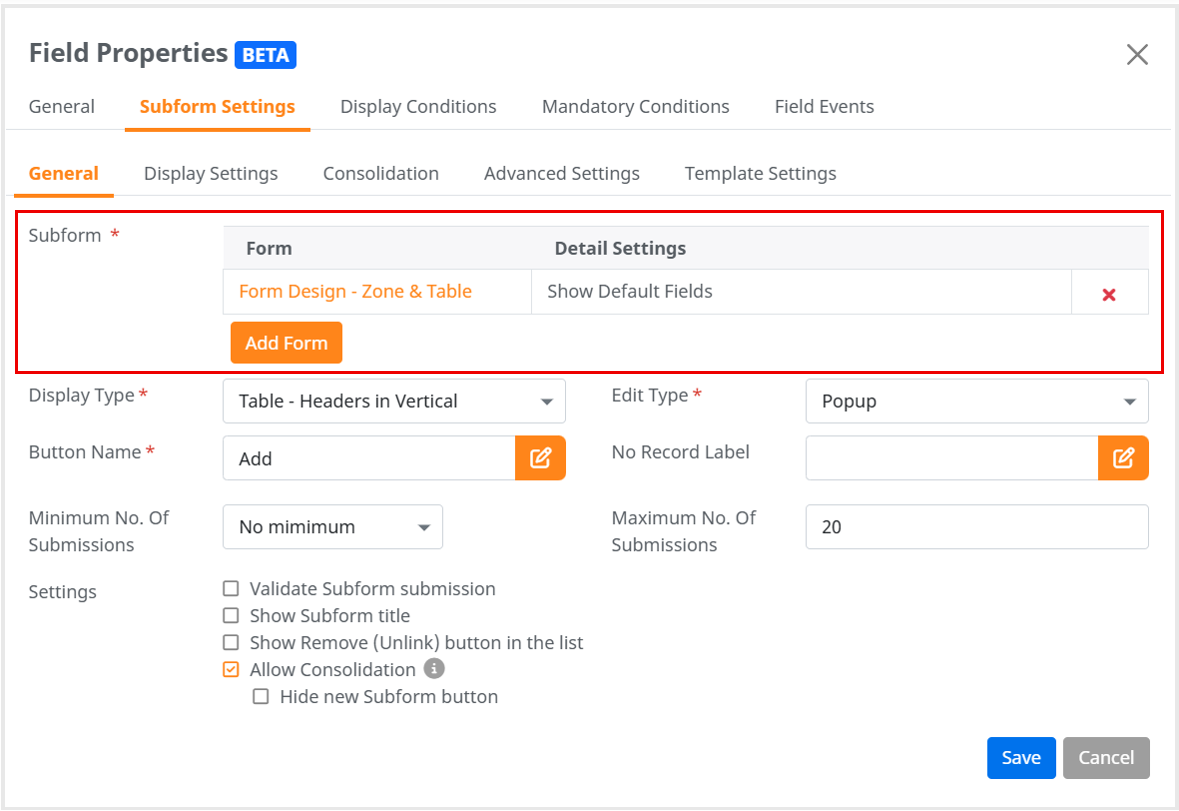
A form will be displayed under the Subforms tab if it is linked as a Subform within another form.
• Navigation:
- Form > Subform Field > Field Properties > Subform Settings Tab > General Tab > Subform (Add Form button)
• Configuration:
1. Add a Subform Field to a form.
2. In Field Properties, go to the Subform Settings tab.
3. Under the General tab, select a form in the Subform section (via Add Form button)
4. Once linked, that selected form will appear under the Subform tab.