
User reports the workflow assignee is incorrect
Form admin need to check the workflow stage configuration.
• Go to the Form Setting page, clicks tab "Workflow Designer" page to see the overall flow of the approval process.At the Designer page, form admin can click on the stage name link (e.g. Manager Approval) to check the assignee settings.
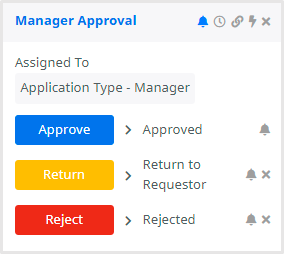
Click on the "Assigned To" tab to check the assignee of the stage if there is incorrect assignee issue reported.
• There are few options for the assignment:
i. Group
o The stage will be assigned to a group of people.
o The assignee will be member of the user group selected.
o Cross check the member in the user group.
ii. User
o The stage will be assigned to the specific user(s).
iii. People Picker Field
o The stage will be assigned to the people selected by requestor during submission.
o Please check the value of the people picker selected by user in the submission.
iv. Master List Item’s Owner
o The stage will be assigned to the owner of the master list item.
o Please check the option selected in the submission is matched with the corresponding master list item owner.
(In Global Settings > Master Lists page)
v. Approver Matrix
o The stage will be assigned to the approver in approver matrix.
o Please check specific approver matrix details in Global Settings > Matrixes page.
a. Admin may Export the template to check on this.
b. If the approver is assigned wrongly, please update and save the matrix in csv UTF-8 format.
c. Backup existing matrix and import the updated matrix to replace all the items.If the reported issue is due to incorrect assignee settings in the workflow stage, please update the setting and publish the workflow.
• Form admin is advised to publish the workflow changes and retest the flow in the UAT environment before publishing the changes in the Production environment.